Use it on a computer
Prefer a mouse and keyboard? Open the same planner on a desktop or laptop. It works as a practical alternative to the touchscreen kiosk.
Everyday Parent Planner puts your calendar, appointments, medication reminders, bills, groceries, notes, and home routines in one clear place. The recommended setup is a 24-inch-or-larger touchscreen all-in-one computer: one large touch display with the computer built in. Choose a model with a webcam, microphone, and speakers for family calls. You can also use a compatible TV or a desktop with keyboard and mouse. Use it on your own, or invite family to help.
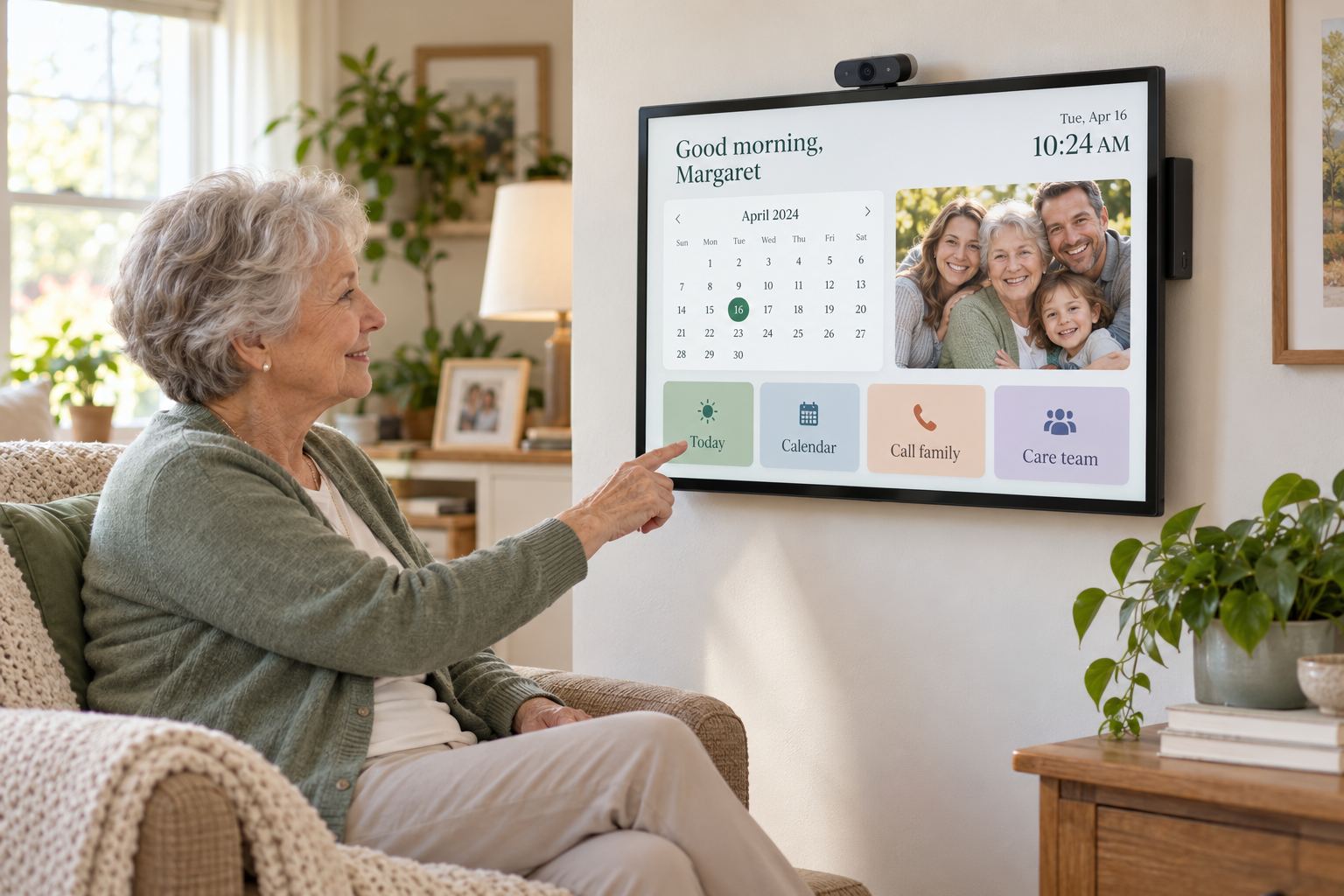
A large, easy-to-use touchscreen for organizing your day at home.
The recommended touchscreen kiosk puts today’s plan, calendar, medication reminders, groceries, and home routines on a large screen. Tap to see what is next or check off completed items. Use the family dashboard only if you want relatives to help manage details.
Prefer a mouse and keyboard? Open the same planner on a desktop or laptop. It works as a practical alternative to the touchscreen kiosk.
A compatible TV connected to a small computer can display the planner. The touchscreen kiosk is the recommended setup for direct, easy interaction.
Keep appointments, medication reminders, bills, groceries, notes, and household routines together. Family calling and quick phone links are available if you want to connect.
Invite relatives to help update the plan and stay in touch. With the recommended touchscreen setup and a webcam, you can also make two-way family calls. A mouse and keyboard are available for computer use.
Start on a computer you already own, then use the same household account on your larger home screen. The 24-inch-or-larger touchscreen all-in-one is the recommended package: it combines the computer and display in one device.
Tap the planner on a large screen. Choose a model with a camera, microphone, and speakers for family calls. It remains a useful everyday computer even if you stop the planner subscription.
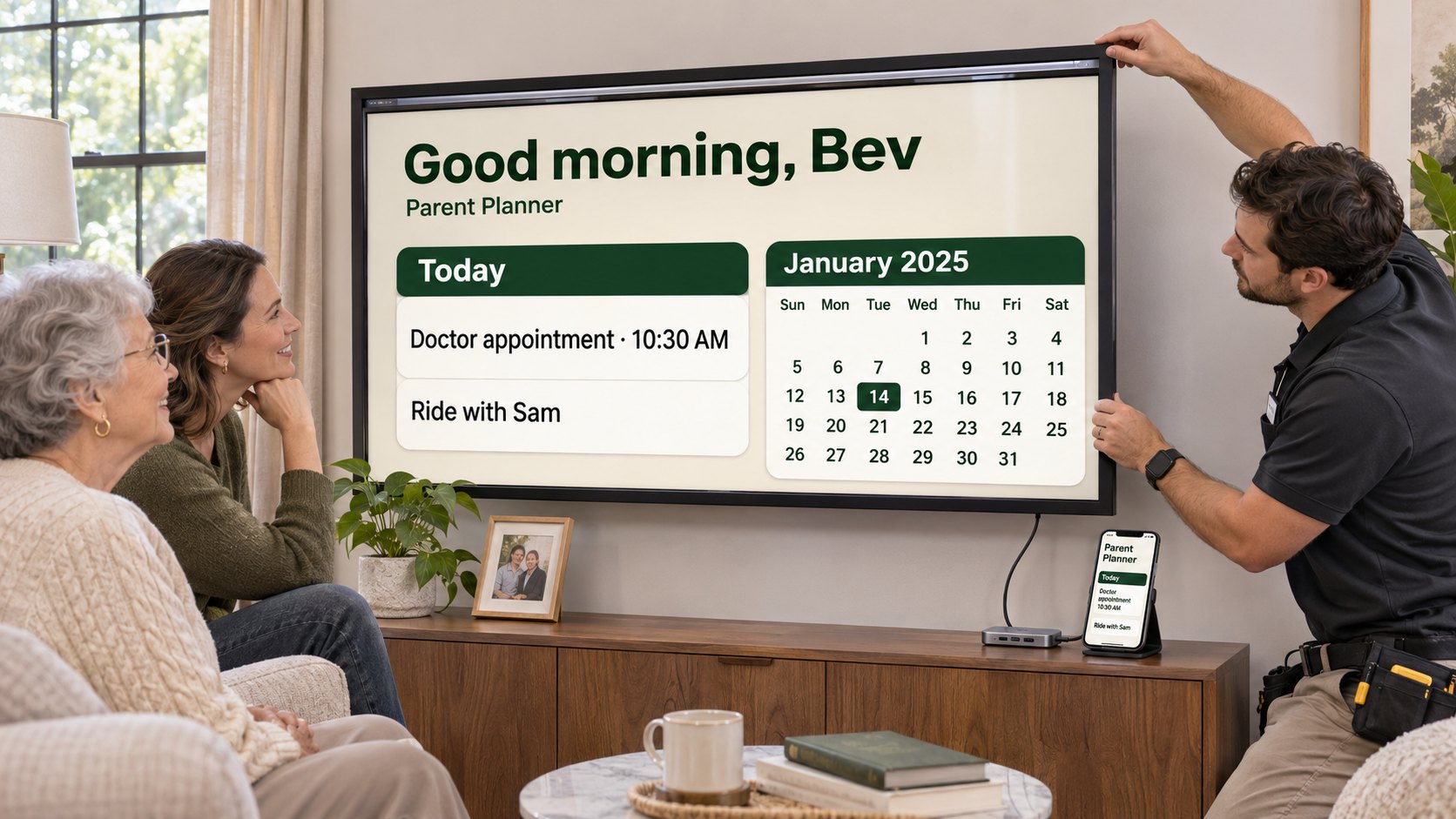
Add a compatible touch frame and a separate computer to use the TV as a touchscreen planner. Screen fit, touch frame, and computer compatibility must be confirmed for the chosen equipment.
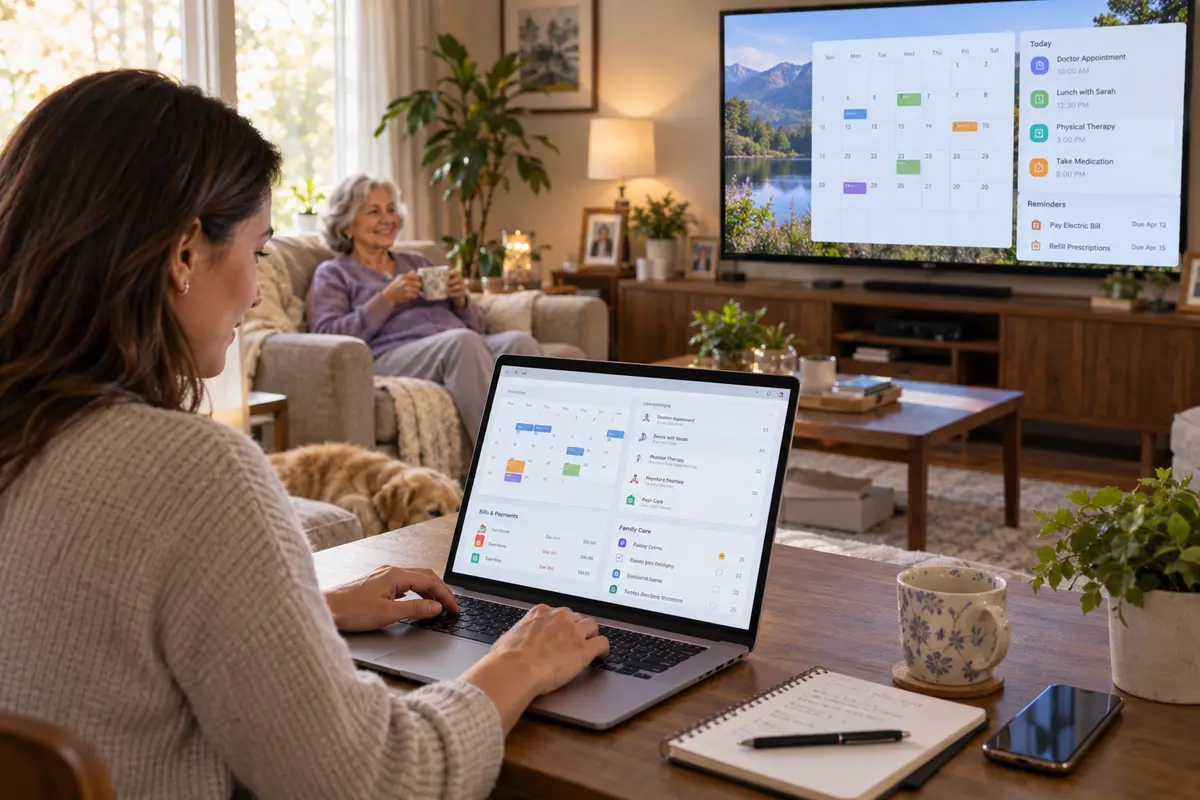
Use a desktop computer and monitor, or connect a small computer to a TV. Control the planner with a standard mouse and keyboard instead of touch.
Hardware package pricing, included items, and ordering details will be shown before checkout opens. The planner subscription is separate from any one-time hardware purchase.
See your day, appointments, reminders, familiar photos, and simple buttons on one clear touchscreen. You can use the planner yourself; family members can help with the shared plan if invited.
Use a touchscreen display or bring the planner to a compatible TV. Setup choices and step-by-step instructions are in the setup guide.
See the day and date, upcoming appointments, reminders, and familiar family photos. Choose a screen schedule, including a dark resting screen overnight.
Show a daily “take your pills” reminder that Mom can confirm. On pillbox day, review the medication list, record refills to pick up, and confirm the seven-day organizer is filled.
Keep appointment details and transportation together, including who is driving. Caregiver schedules can show the assigned person and the visit’s start and finish times.
Caregivers can check in, complete assigned tasks, add notes, and share shopping needs. Families can review the visit update from their plan.
When groceries or household items are added, the family plan highlights the update so the person shopping knows a store trip is needed.
Set recurring tasks such as Tuesday trash day or daily routines. Tasks can repeat without requiring a specific time when one is not needed.
QR codes appear on the TV or home display as an extra convenience. Scan a topic code to open a short phone form for pills, bills, shopping, or appointments; Mom’s screen stays simple.
The senior planner can be used on its own to organize everyday life. If you choose to connect family, they can help update appointments, medication reminders, rides, bills, groceries, and home routines from their phones or computers. Caregivers can use a phone view for visit tasks and notes.
Optional Family Connect lets relatives help with appointments, rides, medication reminders, pillbox refills, bills, groceries, and home routines. You choose what appears on your home screen.
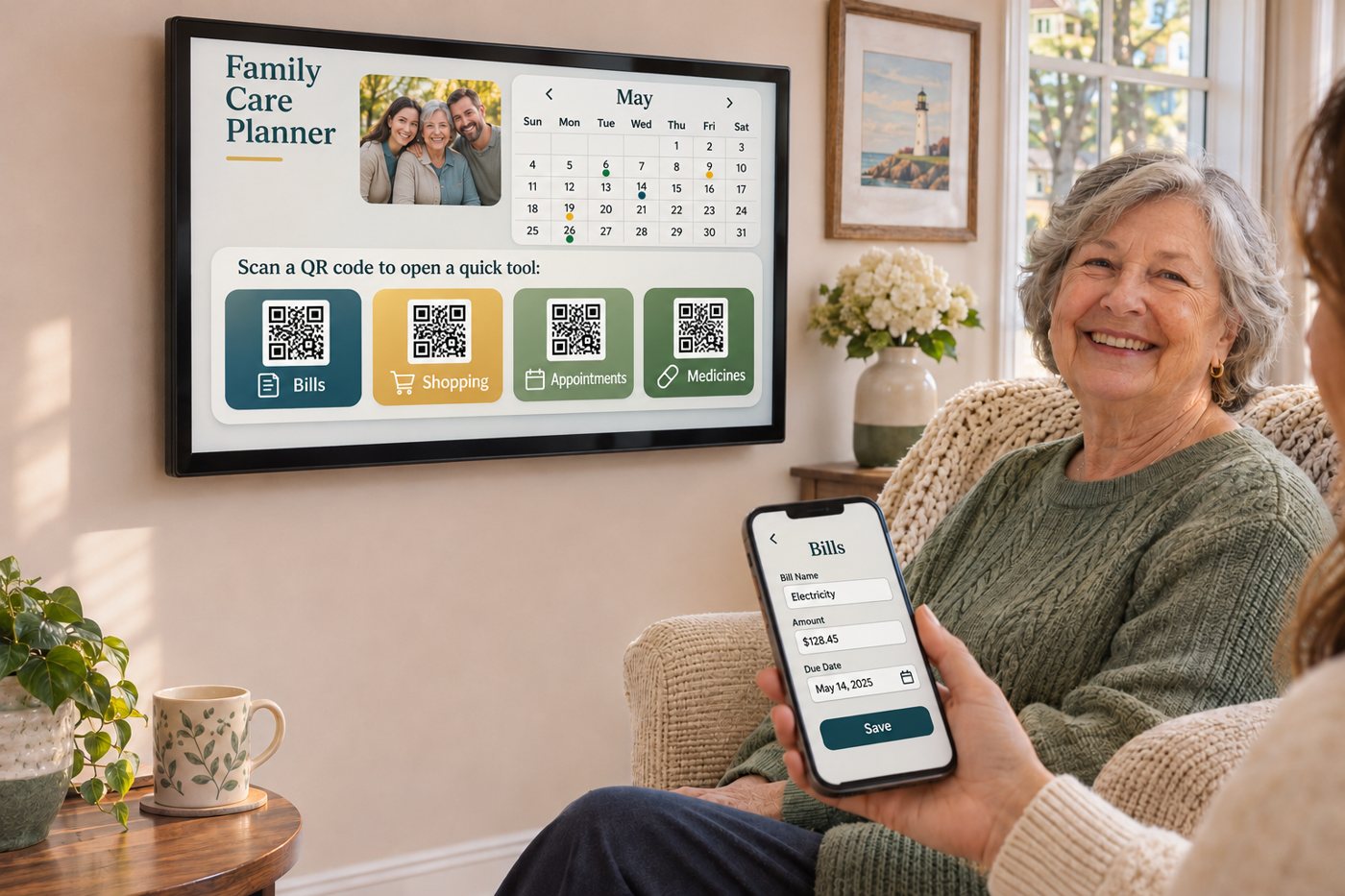
QR shortcuts are an extra convenience for family and caregivers. Codes stay on the home display, and scanning one with a phone opens a short form for a specific topic. The parent-facing screen remains calm and easy to use.
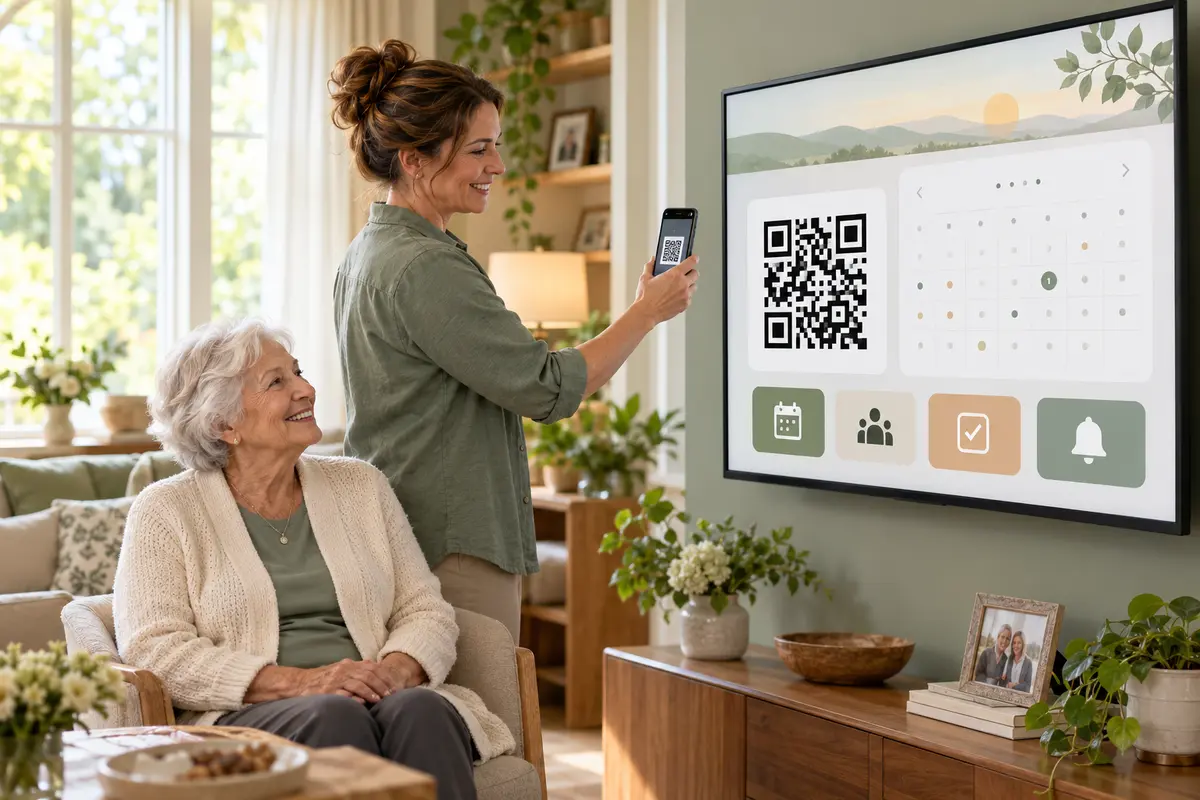
A caregiver can see the assigned visit window—for example, Sam from 10 AM to 4 PM—then check in, complete tasks, add notes, and check out. The family can review the visit handoff and shopping items afterward.
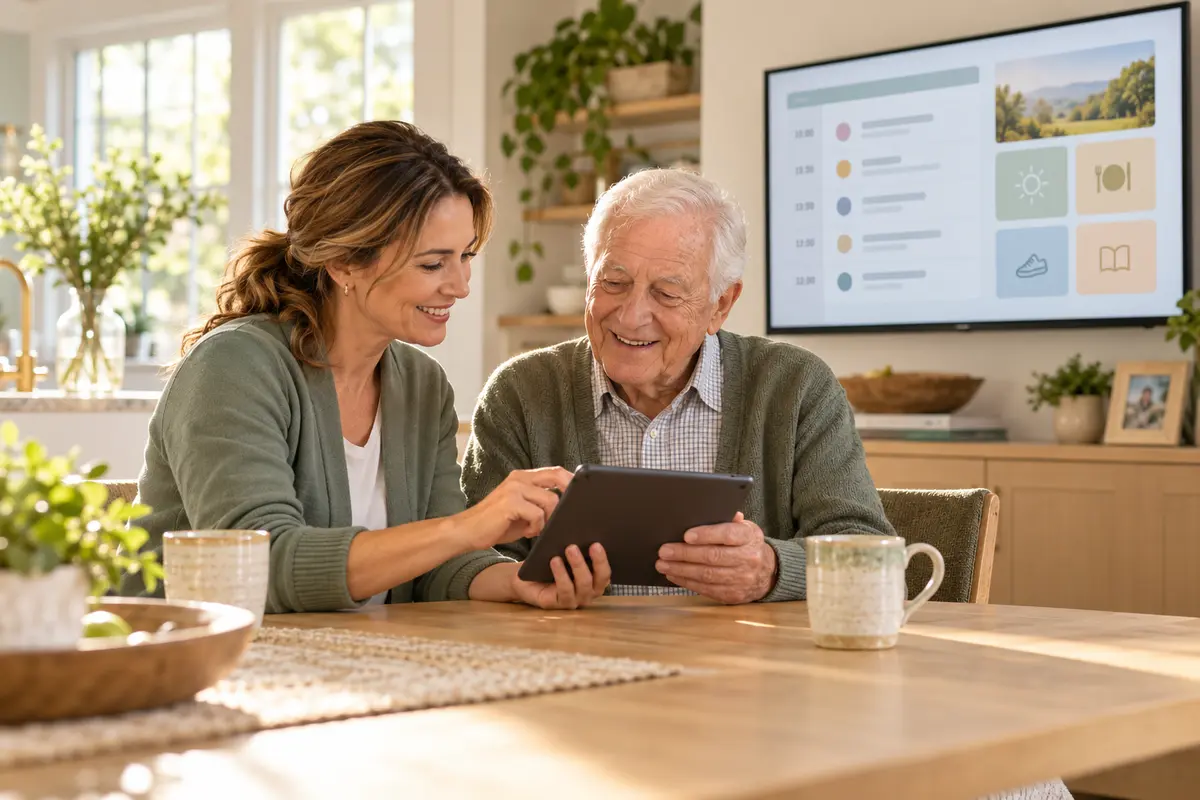
Use a phone or tablet to review assigned tasks, mark checklist items, and share visit updates with the care circle.
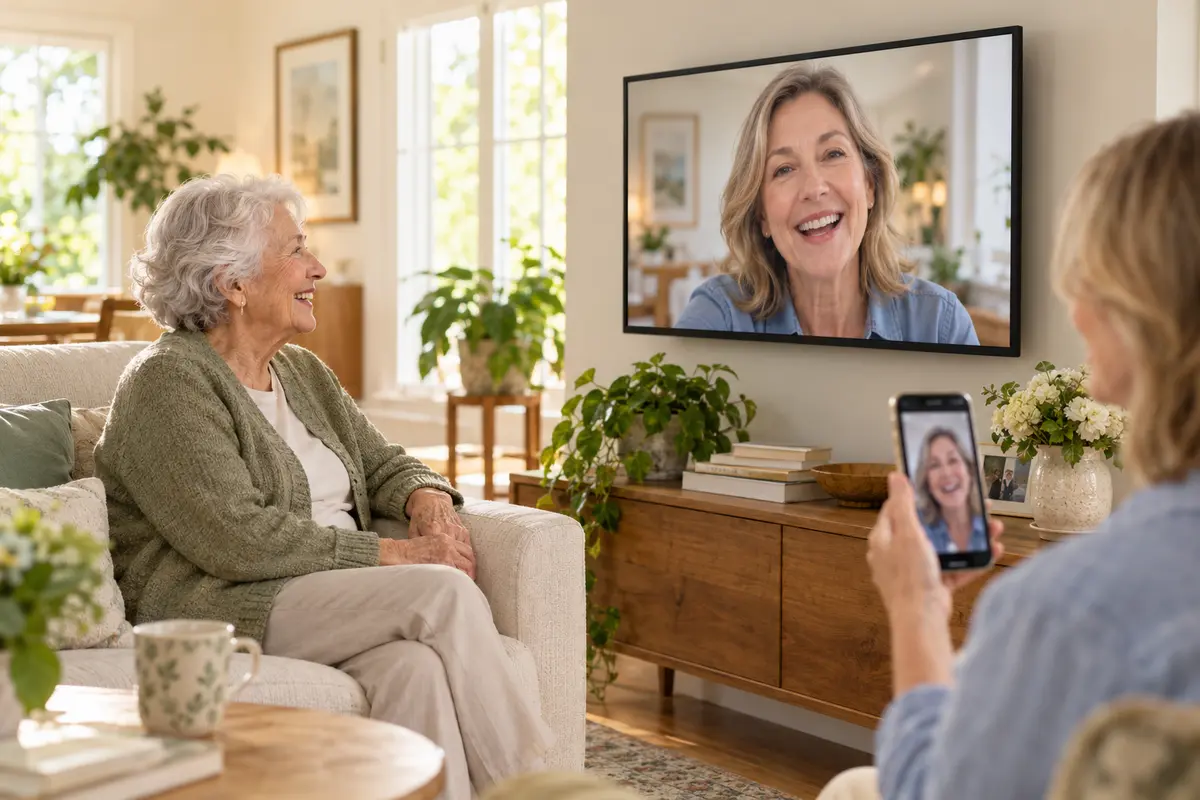
With the primary touchscreen, mini PC, webcam, and microphone connected, family can start or answer a two-way call through the paired screen.
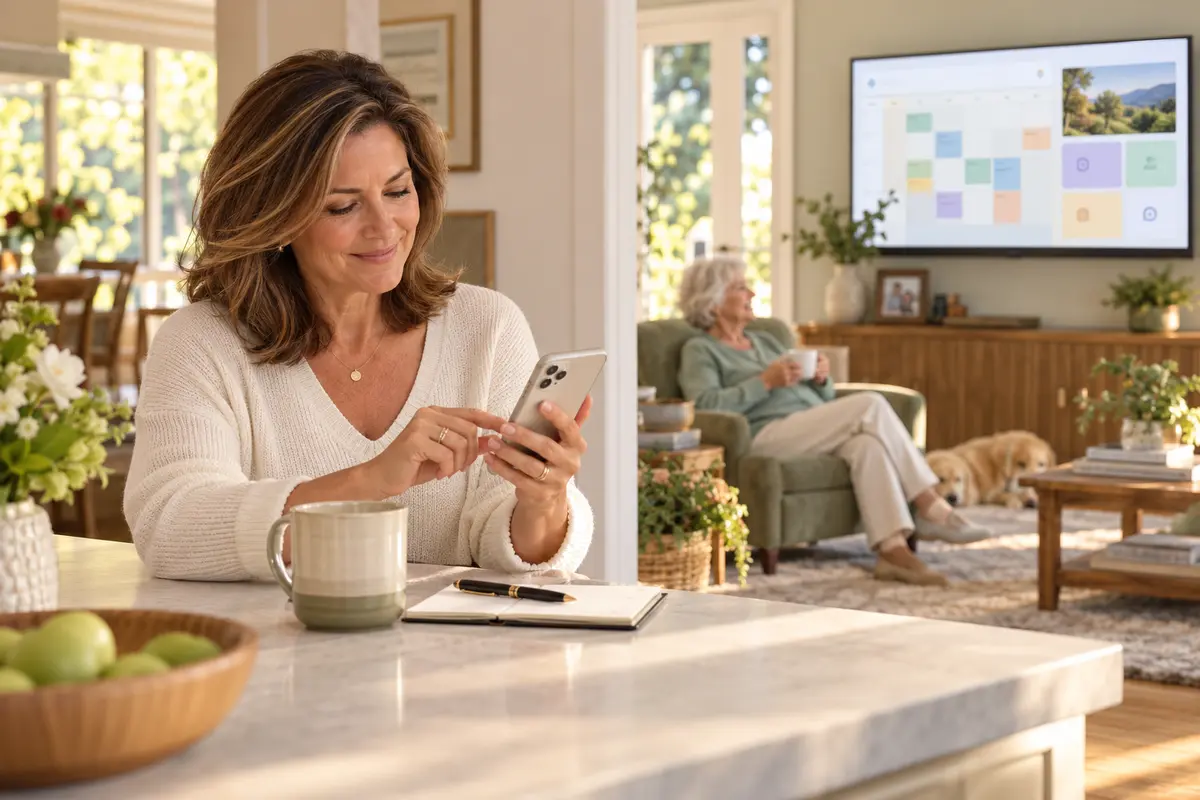
Use the planner independently, or invite family to help keep your shared plan up to date. The home display keeps the details you choose easy to see.
Photos are illustrative. The exact information shown on the home display depends on the household’s settings and the features available in its account.
Choose a touch display or use a TV you already have. The planner keeps the setup steps together and helps you check that the screen responds before you finish.
A family member starts a call from the Media Center on a phone or computer. The paired home screen rings, and the person at home can answer on the touch display. The person at home can also start a call from the screen.
Calls require the primary setup’s webcam and microphone, a supported web browser, internet on both ends, and camera/microphone permission. The lower-cost TV display option is for the planner screen and phone controls only; it does not provide TV video calling.
Choose the touchscreen, computer, and webcam package. Your setup instructions walk you through putting the pieces together and opening the plan when you’re ready.
Review the complete setupStart with the dedicated touchscreen system for touch controls and family calls, or use a compatible web-connected TV for the display-only option.
The system is designed to feel straightforward: one touchscreen display, one compact computer, and one webcam. Setup instructions are provided when you are ready to get started.