Bring the family plan into the room.
Create a screen link for a tablet or TV browser. It shows upcoming reminders, caregiver visits, and short family messages in large readable cards. Start a call here, or answer when the parent calls from the screen. Enable phone notifications on a signed-in phone or computer for family calls and caregiver visit updates.
Set up or preview a home screen ↓
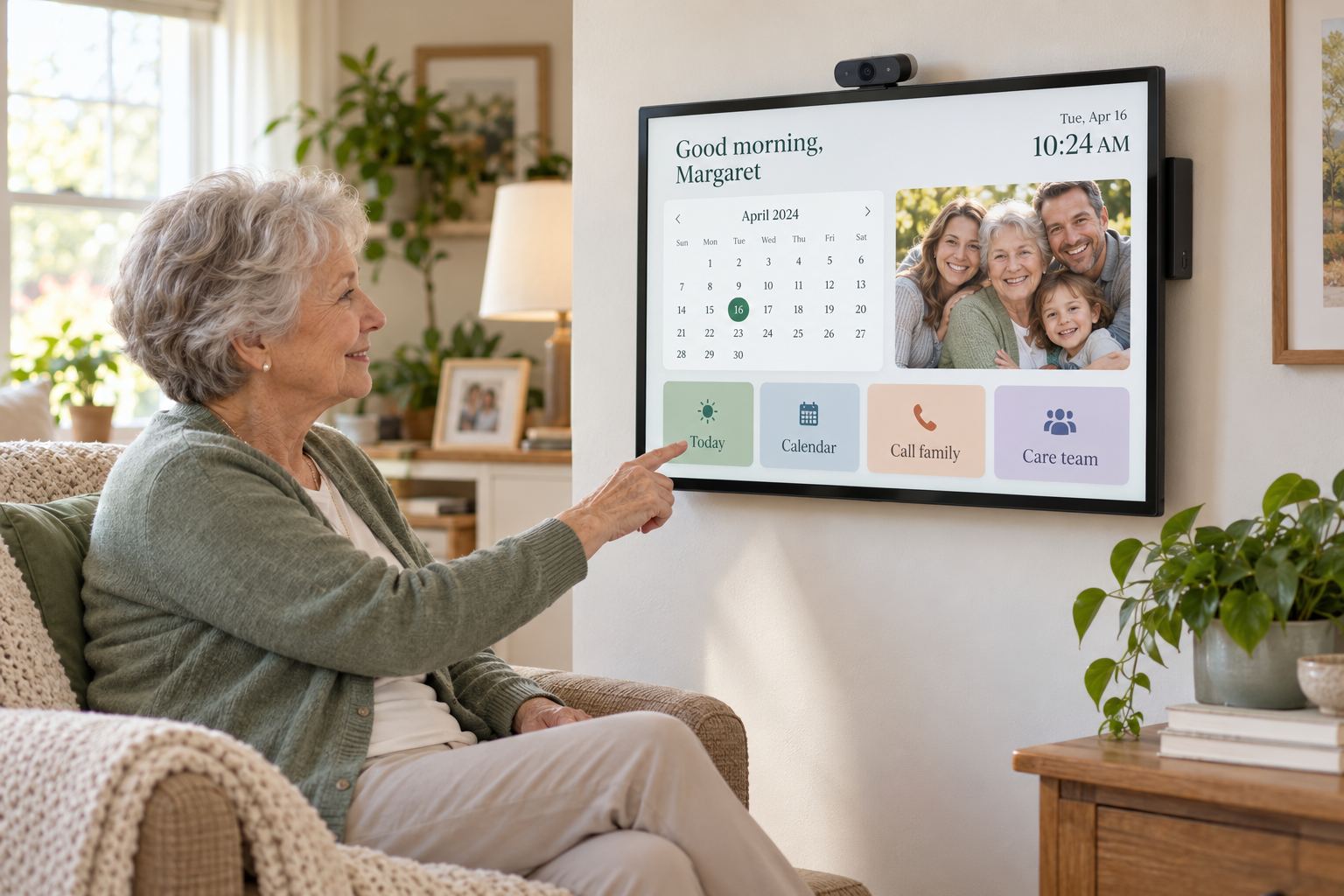
Use a dedicated touch display
Everyday Parent Planner works in a browser. For a room-ready setup, pair a 24-inch touch monitor with a compact mini PC and a webcam with a built-in microphone. The webcam is used for family calls when you allow camera and microphone access.
- Mount the screen within comfortable reach and confirm its VESA fit.
- Attach the mini PC with room for airflow; connect to Wi-Fi and power.
- Create a screen link below, then open its secure URL in the TV browser. Use your phone to manage reminders and messages afterward.
Use your phone to manage what the TV shows
Keep the home screen open on a regular TV browser, then use the phone to update reminders in the care plan or send a short message. The TV refreshes automatically; it does not need a touchscreen.
Use a TV you already own
Open the home-screen link in the TV’s web browser. From your phone, manage the care plan and use the TV Phone Controls page to send a family message. The TV updates as the plan changes.
- No touch monitor, mini PC, or webcam is required for this display-only option.
- A Fire TV Stick can display the screen in its Silk browser, if available on that model; it cannot connect a USB webcam for video calls.
- Use the TV remote once to open the screen link. After that, the family manages reminders and messages on a phone.
Choose family photos for the TV rotation
Choose up to 8 JPG or PNG photos. They are resized in this browser and rotate on every active screen about every 15 seconds.
Use a direct, publicly viewable JPG or PNG image address. Some photo-sharing links require sign-in or block importing; if that happens, save the picture to your phone and use the photo picker above.
Check this device’s camera, microphone, and connection
Run this check on the phone or computer you plan to call from. Camera and microphone access starts only after you tap the button.
Get phone alerts for calls, visits, and team messages
Enable alerts on this phone once. When Mom calls, the notification offers Answer and opens the call screen; that screen repeats a ringtone while the call is waiting. Visit alerts open the care dashboard. Alert previews do not include private care details.
Messages for the home screen
Post a short note your parent will see in the reminder rotation. Messages expire automatically; you can remove one sooner.
When a home screen is offline
If the screen shows “Reconnecting,” it may still display the most recently saved reminders. Check that the device has power and Wi-Fi, reopen its saved screen link, and refresh the browser. This page reports the last time the screen checked in. If it remains offline, use the active screen link from the household’s signed-in Media Center or create a replacement screen link and revoke the old one.
The tablet or TV browser may need its own sleep, kiosk, or auto-start settings after a power interruption.
Print QR codes and caregiver checklists
Connect a Wi-Fi printer and this phone or computer to the same network. On Android, search Settings for Printing and enable a print service or the printer maker’s app. Then choose the printer in the print window.
Use the caregiver visit QR in your care plan for a printed visit sheet. This page can print a sample and your TV pairing QR.
Show the home screen on your TV
Use this once for each TV: it creates a new secure screen link and QR code. It does not open the display by itself.
1. Create the TV link and QR. 2. Tap Preview on this phone to see what the display looks like. 3. To show it on your TV, open the secure link in the TV browser, or cast your phone preview to Google TV.
The QR opens the display on whichever device scans it. The preview link appears after you create it.
Your screens
Printer setup check
If this page is clear and readable, your printer is ready for care checklists and QR sheets.
- Caregiver visit checklist
- Home screen pairing QR
- Family quick-start guide
Printer: ____________________________ Date: ______________